Flexible Image Placement Across Devices
Images that look good everywhere. Learn responsive image techniques, picture elements, and avoiding layout shift problems.
Why Image Placement Matters
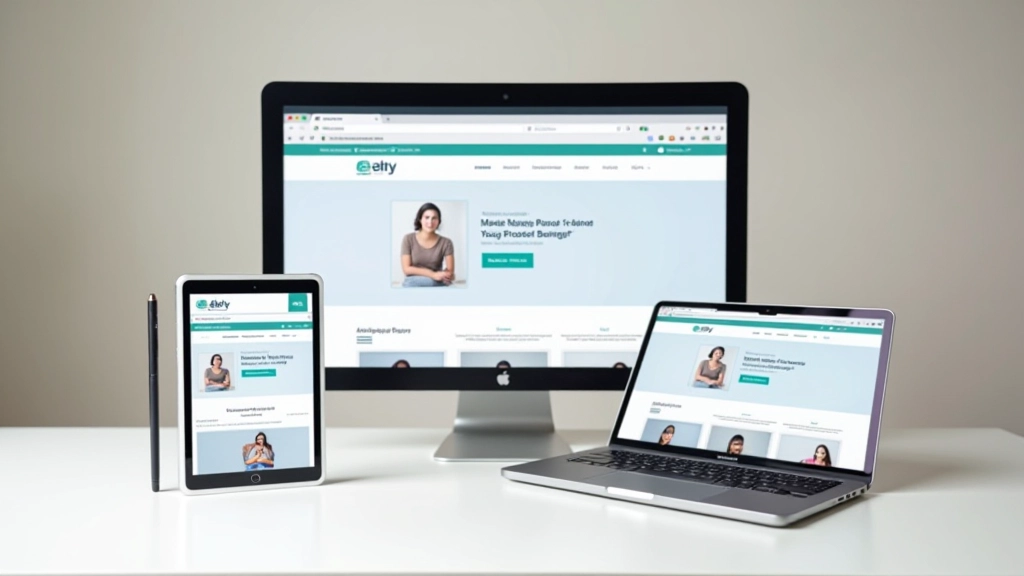
Here’s the thing — images are often the heaviest part of your page. They can look stunning on desktop but become a nightmare on mobile. Get the placement wrong and you’re dealing with layout shift, slow loading times, and users bouncing off your site.
We’re not just talking about scaling images smaller. It’s about intelligent placement that adapts to different screen sizes, different content needs, and different user behaviors. When you nail this, images become an asset instead of a problem.
This guide covers the practical techniques that work. We’ll look at responsive images, art direction, and how to avoid the common pitfalls that developers run into.

The Basics of Responsive Images
You’ve probably used `max-width: 100%` on images before. It works — images scale down on smaller screens. But it’s not enough when you’re trying to optimize for performance and visual quality across devices.
The `srcset` attribute lets you serve different image files based on device pixel density and viewport width. Instead of sending a 2000px-wide image to a phone, you send a 600px version. The browser picks the right one automatically.
Here’s a practical example: a hero image might be 1920px wide on desktop, 768px on tablet, and 360px on mobile. With `srcset`, you provide versions at these breakpoints and let the browser decide which to download. This saves bandwidth and improves load times noticeably.
Quick tip: Most images only need 2-3 sizes: mobile (600px), tablet (1024px), and desktop (1920px). Don’t overthink it.


Art Direction with Picture Element
Sometimes you don’t just need a smaller version of the same image. You need a completely different image. On desktop, your hero might show a landscape photo. On mobile, you want a portrait version because the viewport is tall and narrow.
That’s where the `
The beauty is that it’s backward-compatible. Older browsers just ignore the sources they don’t understand and use the fallback `
` tag. You’re not breaking anything for users on older devices.
- Mobile: 1:1 or 4:3 aspect ratio crops
- Tablet: 16:9 or 3:2 landscape crops
- Desktop: Full-resolution landscape images
Preventing Cumulative Layout Shift
You’ve seen this — you’re reading an article and suddenly the text jumps down because an image finally loaded. That’s layout shift, and it’s annoying for users and harmful for your Core Web Vitals scores.
The fix is simple: always reserve space for images before they load. Use `aspect-ratio` in CSS to maintain the right proportions. A 16:9 image stays 16:9 while loading, so the layout doesn’t move around.
Set this on every image container. You’re basically saying “this space is going to be 16:9, so reserve it now.” The image loads into a space that’s already the right size. No jumps. No shift.

Image Placement Strategies That Work
Different content types need different approaches. Here’s what actually works in practice.
Full-Width Heroes
Hero images should be dramatic but load fast. Use aggressive compression. Serve a small version on mobile (600px), medium on tablet (1024px), and full resolution on desktop (2400px). Your 2MB image becomes 180KB on phones.
Content Floats
When images sit beside text, they need breathing room. Use flexbox or grid on desktop to position them. On mobile, stack vertically. Set consistent aspect ratios so layouts don’t shift as images load.
Grid Galleries
Image grids need consistent sizing. Use CSS Grid with auto-fit and maintain square or 16:9 aspect ratios. Lazy loading helps here — load images only when they’re about to enter the viewport. Your page loads faster and users see content quicker.
Thumbnail Cards
Cards with images work great on mobile. Stack them vertically on phones, 2 per row on tablets, 3-4 on desktop. Use object-fit: cover to maintain aspect ratios without distortion. Images crop automatically to fit the space.
Implementation Checklist
You don’t need a complex setup. Here’s the straightforward checklist that actually matters:
Set Aspect Ratios
Use `aspect-ratio: 16/9` or `aspect-ratio: 1` on image containers to prevent layout shift while images load.
Provide Multiple Sizes
Use `srcset` to serve 600px, 1024px, and 1920px versions. Compress aggressively for mobile.
Consider Art Direction
Use `
Lazy Load When Needed
Add `loading=”lazy”` to below-the-fold images. Let the browser load them when users scroll near them.

Common Mistakes to Avoid
We’ve all seen these happen. They’re easy to fix once you know what to look for.
Using Only Max-Width
Setting `max-width: 100%` works, but you’re still sending full-resolution images to mobile phones. Use `srcset` to actually serve smaller files.
Forgetting Aspect Ratios
Without `aspect-ratio`, images cause layout shift while loading. Always reserve space. This single CSS property improves user experience dramatically.
Ignoring File Compression
A 2MB image on desktop becomes unacceptable on mobile. Compress for each breakpoint. A 600px image for phones should be under 100KB.
Not Testing on Real Devices
Chrome DevTools is helpful, but real phones matter. Test actual load times on real 3G/4G connections. Your experience at office WiFi isn’t what users get.
Getting Images Right
Responsive images aren’t complicated once you understand the fundamentals. You’re balancing visual quality with file size and ensuring layouts stay stable as images load. That’s really it.
Start with aspect ratios — they’re the biggest bang for your buck. Add `srcset` when you’re ready to optimize file sizes. Use `
The benefit is immediate: faster pages, better user experience, and Core Web Vitals scores that don’t make you cringe. Your users notice. Google notices. Everyone wins.
Ready to Implement?
Start with one technique this week. Add aspect ratios to your image containers. You’ll see the difference immediately in how your pages load and feel.
Back to Mobile-First GuideDisclaimer
This article provides general guidance on responsive image techniques and web development practices. Browser support varies across versions and devices. Image optimization results depend on many factors including file formats, compression levels, network conditions, and specific use cases. The techniques described here represent common best practices, but individual implementations may require adjustments based on your specific requirements, audience, and technical constraints. Always test thoroughly on real devices and networks before deploying to production. Performance improvements vary by implementation and environment.